Windows Stuck at Loading game data... 2.5 won't start

DanyBoy74

Refugee
Greetings all,

Hopefully someone will be able to help me with my little problem. Since the 2.5 update dropped, I’ve been unable to play. My game gets stuck at the “Loading Game Data” stage, soon after the FP logo. I’ve reinstalled the game multiple time, remove all traces of the game in the app date folder, the steam folder, and the regedit… sadly nothing works. Looking at the log, I see this:

Unloading 5 Unused Serialized files (Serialized files now loaded: 0)
[PhysX] Initialized MultithreadedTaskDispatcher with 32 workers.
UnloadTime: 1.430000 ms
2025-12-29T22:39:47 7.971 INF Awake IsFocused: True
2025-12-29T22:39:47 7.971 INF Awake
2025-12-29T22:39:47 8.127 INF Occlusion: Awake
Unloading 5 unused Assets to reduce memory usage. Loaded Objects now: 6577.
Total: 6.037300 ms (FindLiveObjects: 0.179000 ms CreateObjectMapping: 0.060300 ms MarkObjects: 5.780100 ms DeleteObjects: 0.017500 ms)

2025-12-29T22:39:47 8.160 INF Resetting Game
PlayerPrefsException: Could not store preference value
at UnityEngine.PlayerPrefs.SetString (System.String key, System.String value) [0x00019] in <c39a522eee05469b8171a6cfeb646c59>:0
at SaveDataPrefsUnity.SetString (System.String key, System.String value) [0x00000] in <2535b88e54944baa8d45436662eca413>:0

at SdPlayerPrefs.SetString (System.String key, System.String value) [0x00005] in <2535b88e54944baa8d45436662eca413>:0
at GameOptionsManager.SaveControls () [0x00034] in <2535b88e54944baa8d45436662eca413>:0
at GameOptionsManager.ResetGameOptions (GameOptionsManager+ResetType _resetType) [0x0054f] in <2535b88e54944baa8d45436662eca413>:0
at GameManager.ResetGame () [0x0000a] in <2535b88e54944baa8d45436662eca413>:0
at GameManager.Awake () [0x003c3] in <2535b88e54944baa8d45436662eca413>:0

NullReferenceException: Object reference not set to an instance of an object
at NGUIWindowManager.Update () [0x0001a] in <2535b88e54944baa8d45436662eca413>:0

NullReferenceException: Object reference not set to an instance of an object
at GUIWindowManager.IsInputActive () [0x0003b] in <2535b88e54944baa8d45436662eca413>:0
at GUIWindowManager.Update () [0x000c0] in <2535b88e54944baa8d45436662eca413>:0
...

I am not too computer savvy, but this might be the roof of the issue... I just can't I make heads or tail of any of this...

Hopefully someone out there can help me...

Cheers !
 
I can't say for sure, but it is an error saving a setting, so that suggests your antivirus may be blocking it (see the pinned topic that explains how to whitelist the save folder and game folder for your antivirus). Note that turning off antivirus isn't the same thing and may not solve the problem. The other possibility, though less likely is a full hard drive. Other than those, I don't know. A full log could be helpful for people to figure out the problem.
 
From the Launcher/Tools/Clean game data... menu, try checking the Game settings and Player profile boxes and then press Clean.
You won't lose progress, but you will have to make a new character.
 
Hi all! I seem to have the same issue. I first got the game yesterday, so it was a fresh install from the get go. I have tried launching all the modes, with or without tick boxes, the OS is 11, all updated, its on excluded folders on antivirus and allowed through the firewall. I tried launching in offline mode, administrator, dedicated graphics, specific resolution, combability modes. All permissions are set. My hubby installed the game from a fresh steam download on his pc and got it running without adaptation. (Making me a little more POed XD) I tried turning off the defender when starting up, still same. I've also got plenty of space.
Specifically this error "PlayerPrefsException: Could not store preference value" is what makes me add to this file. So same issue, but fresh game. And log;


Help, Please and tanku
 
oops, missing from the long thread;

2026-01-03T16:50:31 53.580 INF Preparing quit
NullReferenceException: Object reference not set to an instance of an object
at GUIWindowManager.CloseAllOpenWindows (GUIWindow _exceptThis, System.Boolean _fromEsc) [0x0003e] in <2535b88e54944baa8d45436662eca413>:0
at GameManager+<ApplicationQuitCo>d__190.MoveNext () [0x00080] in <2535b88e54944baa8d45436662eca413>:0
at UnityEngine.SetupCoroutine.InvokeMoveNext (System.Collections.IEnumerator enumerator, System.IntPtr returnValueAddress) [0x00026] in <c39a522eee05469b8171a6cfeb646c59>:0
UnityEngine.MonoBehaviour:StartCoroutineManaged2(MonoBehaviour, IEnumerator)
UnityEngine.MonoBehaviour:StartCoroutine(IEnumerator)
GameManager:OnApplicationQuit()
UnityEngine.Application:Internal_ApplicationWantsToQuit()

The NullReferenceException: Object reference not set to an instance of an object goes on for a while, then this comes. Uncertain if that is reacting to the manual kill of the program i am doing, or if its something else. But then followed by more "The NullReferenceException: Object reference" for a while
 
The error looks very much like a permissions/security problem. Your two excluded folders in
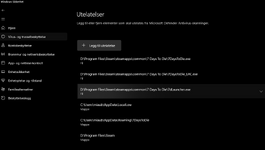
Defender should be D:\Program Files\Steam and C:\Users\miaub\AppData\Roaming/7DaysToDie
Also, check for any other security or OEM gaming software that might have it's fingers on the game.
 
Those are all the excluded folders and files, so there should be no issue there. I cant think of any other security aside from the firewall, where the 3 files are allowed as per common solutions and other "how to fix" videos.
 
Those are all the excluded folders and files, so there should be no issue there. I cant think of any other security aside from the firewall, where the 3 files are allowed as per common solutions and other "how to fix" videos.
Those exclusions work. Have you tried using the Launcher/Tools/Clean game data... menu?
 
I followed all the proper procedures, I also rolled back the Nvidia drivers, and installed the game on another drive, but the issue persisted. I also reinstalled several other games, including some using the Unity Engine and at the exception of 7 Days, they all worked fine.

Interestingly, a few hours prior to upgrading to version 2.5, I was playing 7 Days on a private server that was still running version 2.4. We subsequently decided to proceed with the update. Both my wife and son experienced no issues during the process. A quick note, both are using older hardware and operating Windows 10, I am on 11.

Looking at the event log, it seems that something is preventing the normal process, but I just can’t find the answer. I made sure that everything 7days was deleted from the appdata and the regedit, made sure that the firewall and security were open, I used the launcher tool… still unable to play the game.

The only thing that was updated between me playing 2.4 and me updating to 2.5, is the game itself…

It seems we are a few with this issue...
 
Disclaimer: You do not have to do this, it is merely a suggestion.


1 On the root of the partition that you are using meaning either c:\ d: etc
Create a folder named Steam with a capital s.

2 Once steam folder is created, then double click so you see the blank space.

3 open a second window, move it to the side

4 Drill down to the location of your steam game installs

5 double click on Steam in the second folder, so that you can see all of the folders in the right hand window

6 highlight all of the sub folders and files, then drag them to fill the space, in the empty steam folder that you
just created. "It will move them because it is on the same partition, so no extra space will be involved.

7 drill down to the 7 days to die folder, start from the executable. the launcher would be best to check configuration.

If it starts, then you are not an admin, in the other folder, or child objects are not inheriting rights as you would expect.
NOTE: If so that is a windows thing not a Steam of 7 days thing.

If you have other steam games that ran from the other directory and will not run from the newly created one, then you
can first Highlight and Copy, all of the steam
files and folders except. Common. That contains the actual games. Once complete make a folder named Common in
steam folder you have just been copying to, make sure it is at the same level, so it looks like a mirror of the other steam
folder with 7 days in it. Copy Steam Controller Configs and Steamworks Shared but no games.

Finally move the game folders to the new common folder you created.

Then to be sure all fully functions, go to steam for 7 days. right click and set it to the Path you created for 7 days.

Side Note: The moving and copying sequence above, can be done just for 7 days, leaving the other games in place.
I have not read the other Steam suggestions, this is something that I did/do for myself that has worked consistently.
 
Thanks 4sheetz, I tried the above. All went well until step seven. No change from previous errors, I'm afraid. I checked the other games, which did NOT run here, so i moved everything back to original position.
This was a new suggestion tho, so thankful to try!
Post automatically merged:

I followed all the proper procedures, I also rolled back the Nvidia drivers, and installed the game on another drive, but the issue persisted. I also reinstalled several other games, including some using the Unity Engine and at the exception of 7 Days, they all worked fine.

Interestingly, a few hours prior to upgrading to version 2.5, I was playing 7 Days on a private server that was still running version 2.4. We subsequently decided to proceed with the update. Both my wife and son experienced no issues during the process. A quick note, both are using older hardware and operating Windows 10, I am on 11.

Looking at the event log, it seems that something is preventing the normal process, but I just can’t find the answer. I made sure that everything 7days was deleted from the appdata and the regedit, made sure that the firewall and security were open, I used the launcher tool… still unable to play the game.

The only thing that was updated between me playing 2.4 and me updating to 2.5, is the game itself…

It seems we are a few with this issue...
Is there any way to roll back to 2.4 for you?
 
@Elskov

For me, that would mean, the other games are set in steam to the default folder.
For 7 days to die, did you try to run it in offline mode? as well as online.

If all files are in place, and the file it is trying to reference is in the game folder,
being transferred to the profile folder, and it is not allowed to be accessed.

The next thing I would do on my computer, which does not cause any conflict, is
I would go to the control panel, User Accounts, and create an administrator profile.
Give it any name because it would just be used for a local test.

Log off present profile, and log on as the other. Verify all of the files as before, but
in the startup, change the setting for for the character. BRB checking naming in game
settings.
 
OK, when first menu screen appears, go to player profile and pick a different character,
don't create one.

Then when preparing to start the game For the option Persistent Profile set it to off.
In the older versions, sometimes it would lockup when I tried the default character.

Without being in front of the computer, It would appear to be a rights issue between the
game folder and the associated profile folder Just for 7 days. I usually would either create
a different folder, and check security to make sure my name has all of the checks except
special permissions.

Also prior versions, may have a file in documents. It should not cause a conflict but it could
be deleted to make sure.

This is the last thing I would ask. Have you tried to roll back to any of the prior versions to see
if they will function?

Basically around A21, and V1.0.
 
@Elskov
I have been checking; the actual break comes at the program attempting to set the options.
I have a few questions, just so I can try to get a clear picture.

Do you have a default 0S 11 configuration, or did your husband reconfigure it so that your program
files are placed on the D partition? If it is changed, I would double check steam, I have the steam app
locally so it may be a bit different for you. open steam, click on steam, then settings then storage and
make sure all syntax is pointing to the correct folder. Then go to library, right click on 7 days to die, under
the general tab, if there are any command line options manually typed in, copy and paste them to notepad
and temporarily remove them. Try to load game. If no additional text then please disregard.

I asked about the partition, because by default OS 11 stores program files on the C:\drive
but if all of your other games, work in subs of that partition, It made me wonder if either a default setting
is pointing to an alternate location, and confusing the startup. Or something is not starting.

For all intent you could copy the 7 days to die game folder, directly to the D drive and run it as long as steam is
running.

Your log specifically skips this line.
[EOS-ACC] Not started with EAC, anticheat disabled

the order for enabled or not normally should be similar to this.

2026-01-08T13:02:59 0.449 INF [Platform] Initializing EOS
2026-01-08T13:02:59 0.472 INF [EOS] Initialize: Success
2026-01-08T13:02:59 0.496 INF [EOS-Voice] Successfully initialized.

2026-01-08T13:02:59 0.497 INF [EOS-ACC] Not started with EAC, anticheat disabled
2026-01-08T13:02:59 0.497 INF [EAC] AntiCheatServerP2P initialized with null interface

2026-01-08T13:02:59 0.498 INF [Platform] Initializing XBL
2026-01-08T13:02:59 0.499 INF [Platform] Initializing PSN
2026-01-08T13:02:59 0.500 INF [Platform] Initializing LAN

Yours is:
2026-01-03T16:49:38 0.511 INF [Platform] Initializing EOS
2026-01-03T16:49:38 0.683 INF [EOS] Initialize: Success
2026-01-03T16:49:38 0.818 INF [EOS-Voice] Successfully initialized.
2026-01-03T16:49:38 0.820 INF [Platform] Initializing XBL
2026-01-03T16:49:38 0.820 INF [Platform] Initializing PSN
2026-01-03T16:49:38 0.821 INF [Platform] Initializing LAN

So there may be a problem with 7DaysToDie_EAC.exe not initializing properly.
Please try this, drill down to \7 Days To Die\EasyAntiCheat Rightclick on EasyAntiCheat_EOS_Setup
and install as administrator.
You can still disable/enable it in the launcher afterward. But it may not be installing and starting
correctly.
Hope this helps, you get to play.
 
Thanks 4sheetz, I tried the above. All went well until step seven. No change from previous errors, I'm afraid. I checked the other games, which did NOT run here, so i moved everything back to original position.
This was a new suggestion tho, so thankful to try!
Post automatically merged:


Is there any way to roll back to 2.4 for you?
I tried rolling back to a previous version... and the game is still stuck... tried a fresh install from A21 and same result...
 
Did you try the last suggestion, to manually install the EAC

So there may be a problem with 7DaysToDie_EAC.exe not initializing properly and EOs service starting.
Please try this, drill down to \7 Days To Die\EasyAntiCheat Rightclick on EasyAntiCheat_EOS_Setup
and install as administrator.


You can still disable/enable it in the launcher afterward. But it may not be installing and starting
correctly.

Try the above.

If EOS does not start, then any version from 1.0 usually will have a game start problem.
People use to configure to bypass eos, but I think it is a necessary integration, with ea anticheat.

If no version will run then, the only constant that I found was that easy anticheat my not have started.
I had to manually install it from the directory once. I think it was at version 1.0. since then no more
problems.
 
Back
Top