

- License
- EULA
- Additional Requirements
- Windows x64
- Any MS Office excel document (*.xlsx) editing toolbox (MS Office, LibreOffice, OpenOffice, Google Sheets, etc). The tool itself do not require MS office or anything else Office related installed to produce Modern Excel (*.xlsx) document format file.
- Compatible Game Versions
- 1.0
- 1.1
- 1.2
- 1.3
- 1.4
- 2.0
VirusTotal scan: https://www.virustotal.com/gui/file/d45f1b0370f45f4fa02e5311fe7af5e07779187cc4e07b4ead434d6e1b5f5ae4
Command line to manage game/mod/modpack localization.
Some examples.
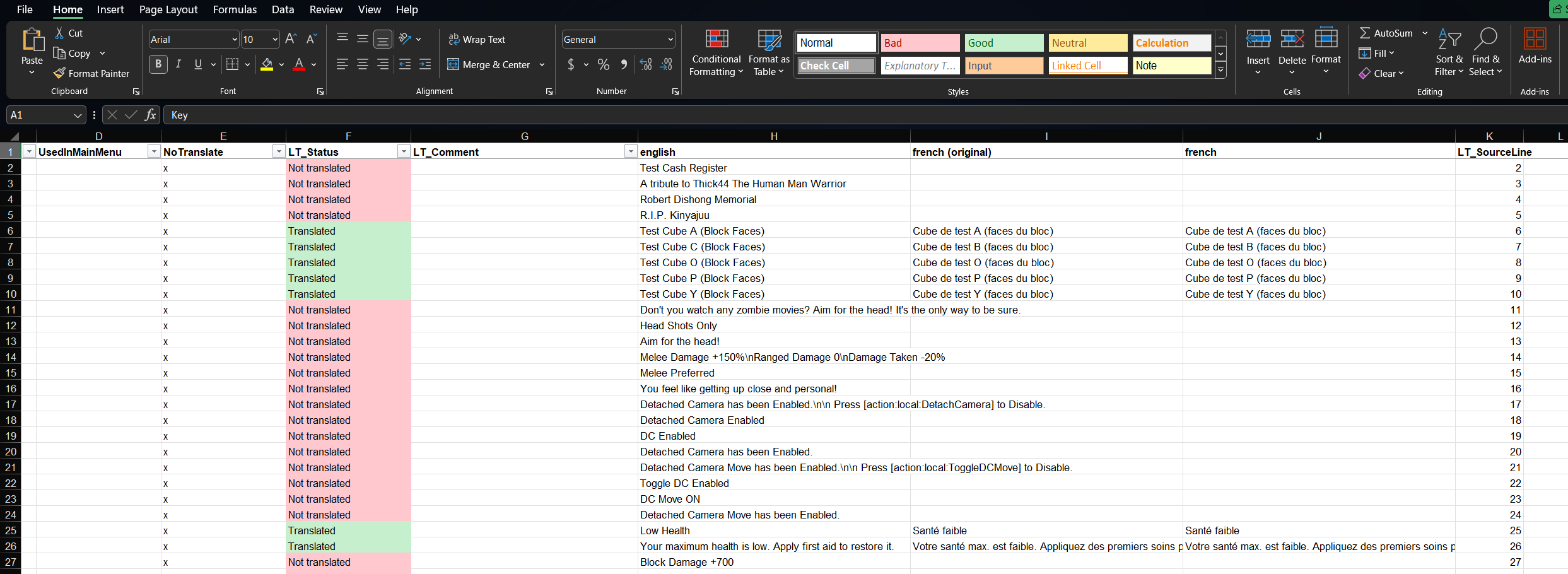
Edit existing translation, e.g. french:
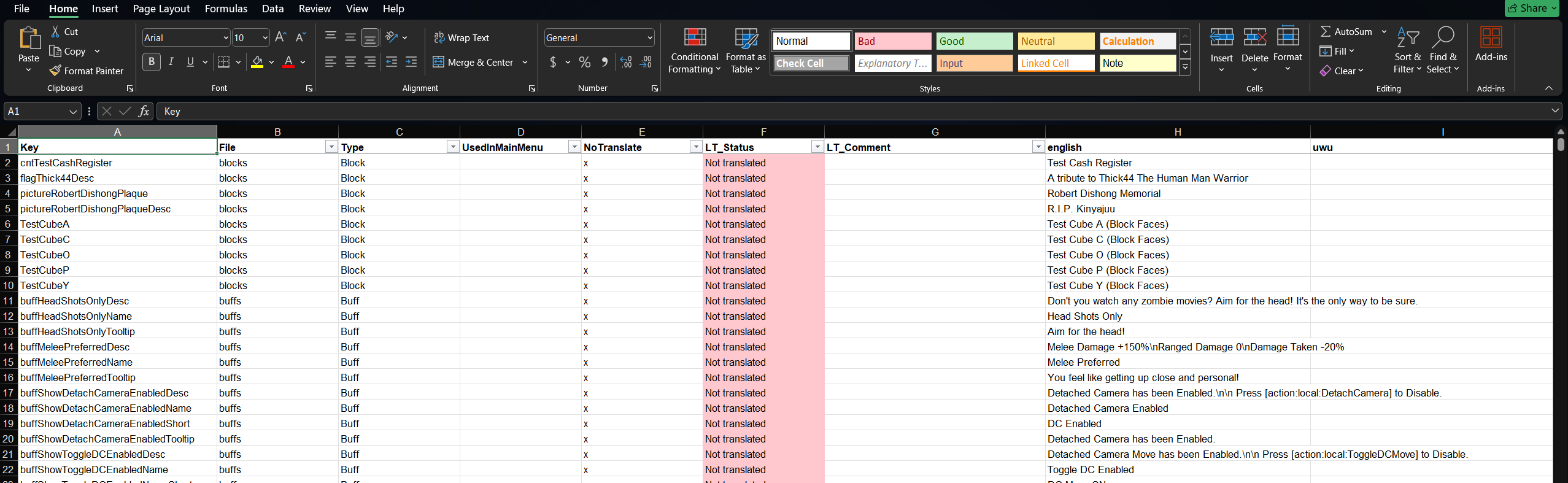
Or add brand new UwU language or KLINGON (why not?):
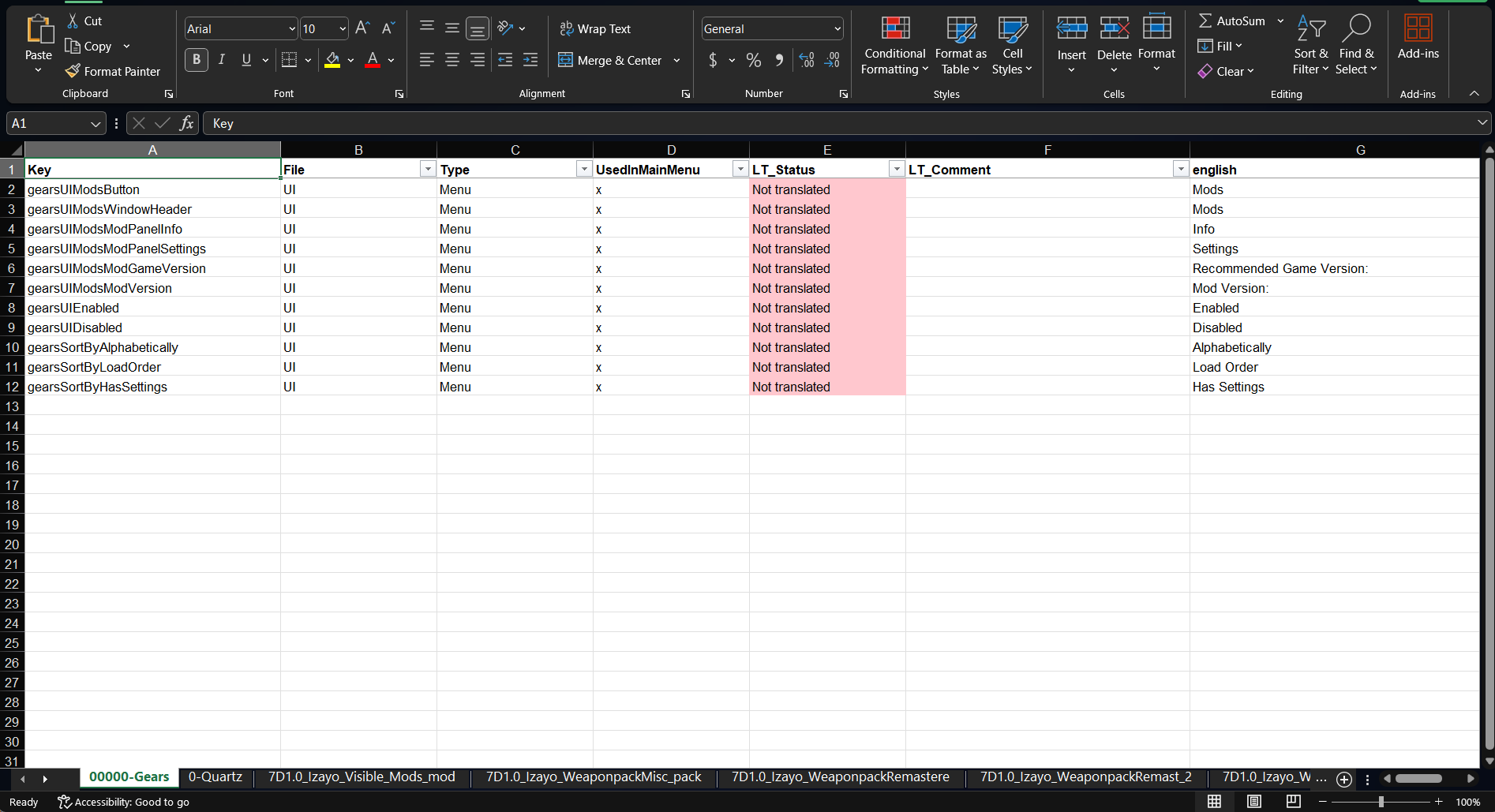
Or a modpack, e.g. AfterLife for 1.4:
Command line to manage game/mod/modpack localization.
Some examples.
Edit existing translation, e.g. french:
Or add brand new UwU language or KLINGON (why not?):
Or a modpack, e.g. AfterLife for 1.4:
- Install / Usage Instructions
- Full instructions in REadMe.txt shipped with the tool.
If translation serving as other mod or set of them then one or all should include ModInfo.xml without it game wont load your mod.
Setup Example:
Create a working directory (e.g., D:\Transl\). Copy LocTool.exe there.
Copy <game>\data\config to D:\Transl\v2.6\ so you have D:\Transl\v2.6\config\Localization.txt.
1. Edit an Existing Language (e.g., French)
a. Extract the existing language:
LocTool.exe import ./v2.6 ./26FrenchUltra.xlsx --lang french
(Open the generated Excel file, edit the strings in the "french" column, and
update the "LT_Status" column to "Translated". Note: A "french (original)"
column will appear if the source already provides that language, allowing
you to compare your changes against the original).
b. Export to a new mod:
LocTool.exe export ./26FrenchUltra.xlsx ./better_french --lang french
(The tool creates a mod-like structure. The file ./better_french/config/Localization.txt
will contain all your changes. Simply add a ModInfo.xml to the folder, and you
have created a language mod!)
2. Add a Completely New Language (e.g., "uwu" or "klingon")
The exact same `--lang` switch used to edit an existing language is also used to
create a brand new one. Just provide a new language name, and the tool will
automatically generate a new column for it in the Excel workbook.
Example: LocTool.exe import ./v2.6 ./26WithHorses.xlsx --lang uwu
(Then, edit the file and export it exactly as shown in Step 1b).
In case of new lang, do not forget make changes to <new lang> column at "GameLang_<lang>" sheet.
In you want that native speakers will find it in in-game options selection.
3. Work with Modpacks (e.g., "AfterLife")
Suppose you have multiple mods in <game>/Mods/. Copy their contents into a single
directory, e.g., D:\Transl\AfterLife_1.4.
a. Extract (Separated by Mod):
LocTool.exe import ./AfterLife_1.4 ./AL_14_spanish.xlsx --lang spanish
(This creates an Excel file with multiple sheets, one for each mod).
b. Extract (Merged into One Sheet):
LocTool.exe import ./AfterLife_1.4 ./AL_14_spanish.xlsx --lang spanish --merge
(Instead of separate sheets, you get a single sheet with an "LT_Mod" column
indicating where each string came from).
c. Export (Separated with Suffix):
LocTool.exe export ./AL_14_spanish.xlsx ./lang_spanish --lang spanish --suffix _sp
(Adds "_sp" to all mod folder names to prevent conflicts with existing mods).
d. Export (Merged into a Single File):
LocTool.exe export ./AL_14_spanish.xlsx ./lang_spanish --lang spanish --merge
(Packs all translations across all mods into a single Localization.txt file,
making it easy to share as one unified mod).
Eg I want share afterlife translation to klingon as one mod/txt file which will work as single standalone mod. For this is what export with --merge allows to do.
4. Track Changes After a Game/Mod Update
When a mod or the game updates, run the import command again on the new version:
LocTool.exe import ./<new_ver> ./existing.xlsx --lang <language>
The tool will automatically:
- Add new rows and set their status to "Not translated".
- Mark rows as "Outdated" if the English source string changed (it also creates
an "english (previous)" column so you can see exactly what changed).
- Remove rows that no longer exist in the update.
Pro Tip: Use --keep-deleted to retain deleted rows with a "Deleted" status instead
of removing them permanently:
LocTool.exe import ./<new_ver> ./existing.xlsx --lang <language> --keep-deleted
Note on Folder Renames: If a mod folder was renamed between versions (e.g.,
"28_alphas-later" changed to "28_alphas_later"), the tool may raise an error
because it expects the "LT_Mods" sheet to match the source folder structure.
Simply update the names in the "LT_Mods" sheet manually to match the new version,
and run the update command again.
5. Inspect and Diagnose
Use the `inspect` command to extract statistics and analysis from a game, mod,
or modpack. Use the `--xml-refs` switch for advanced mod developer testing
(it checks for hardcoded text and unused keys).